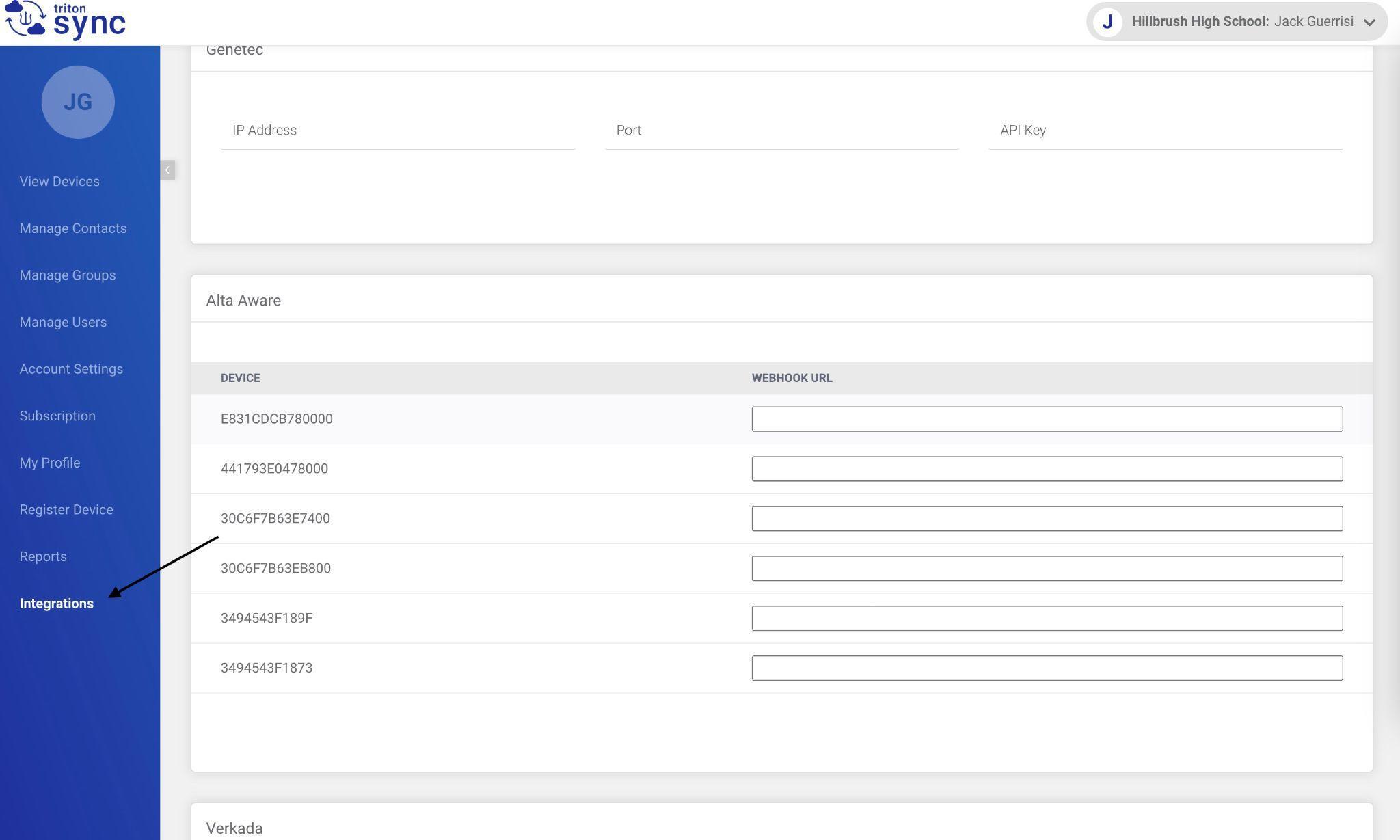
- Select the Integrations Tab on the left-hand navigation bar, and scroll down to the section labeled Alta Aware:
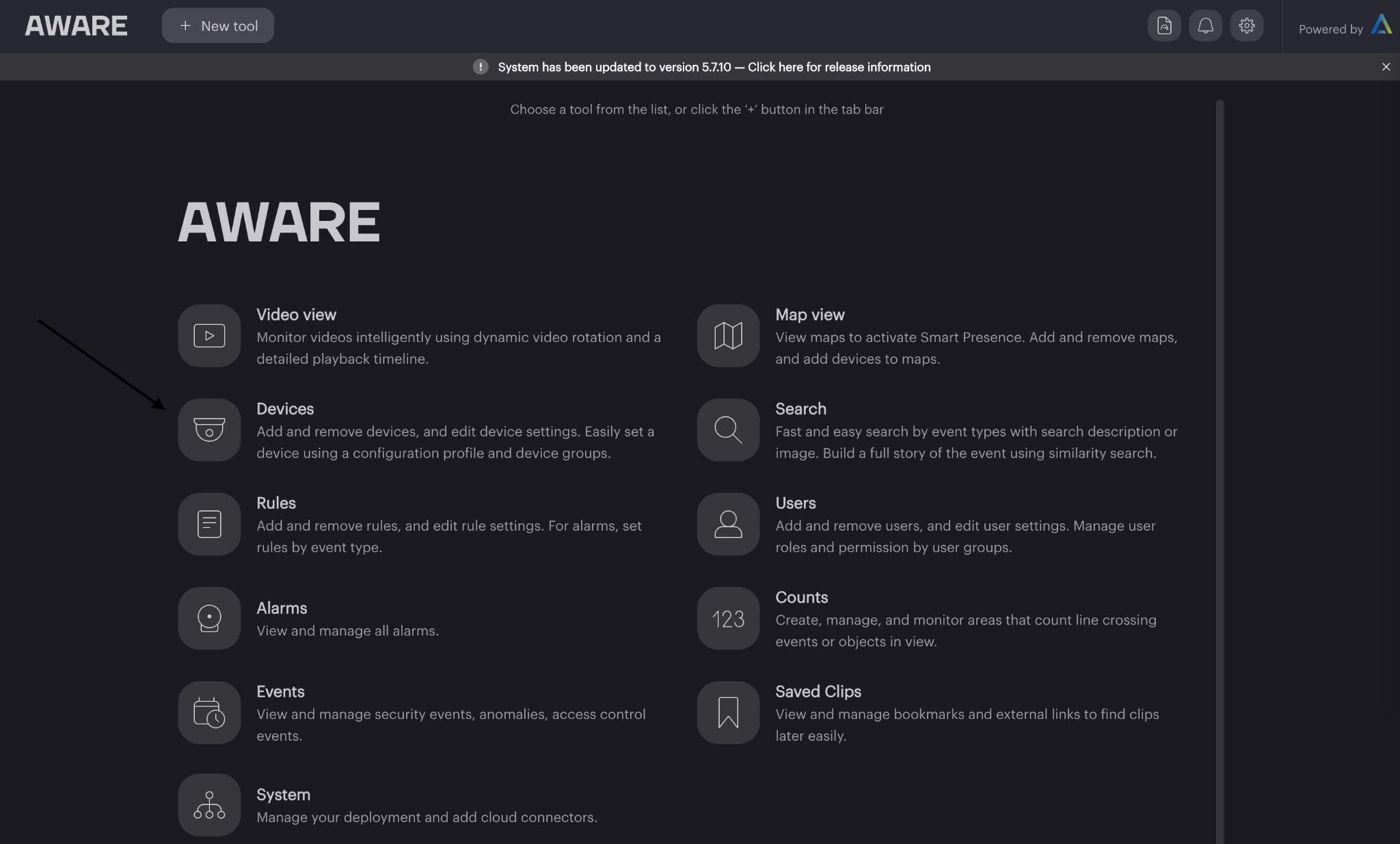
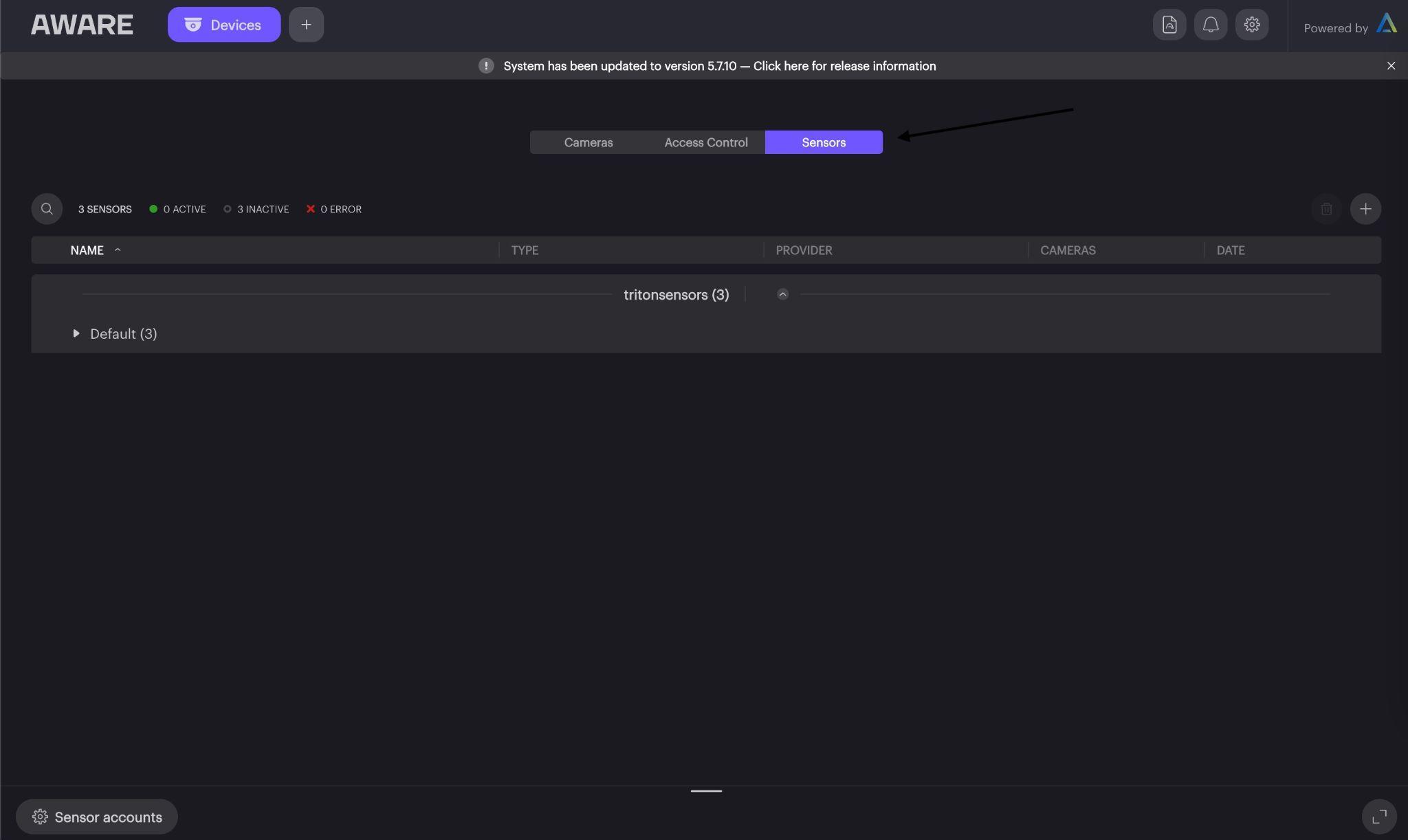
- From the Alta Aware Dashboard, select “Devices”, then select “Sensors”
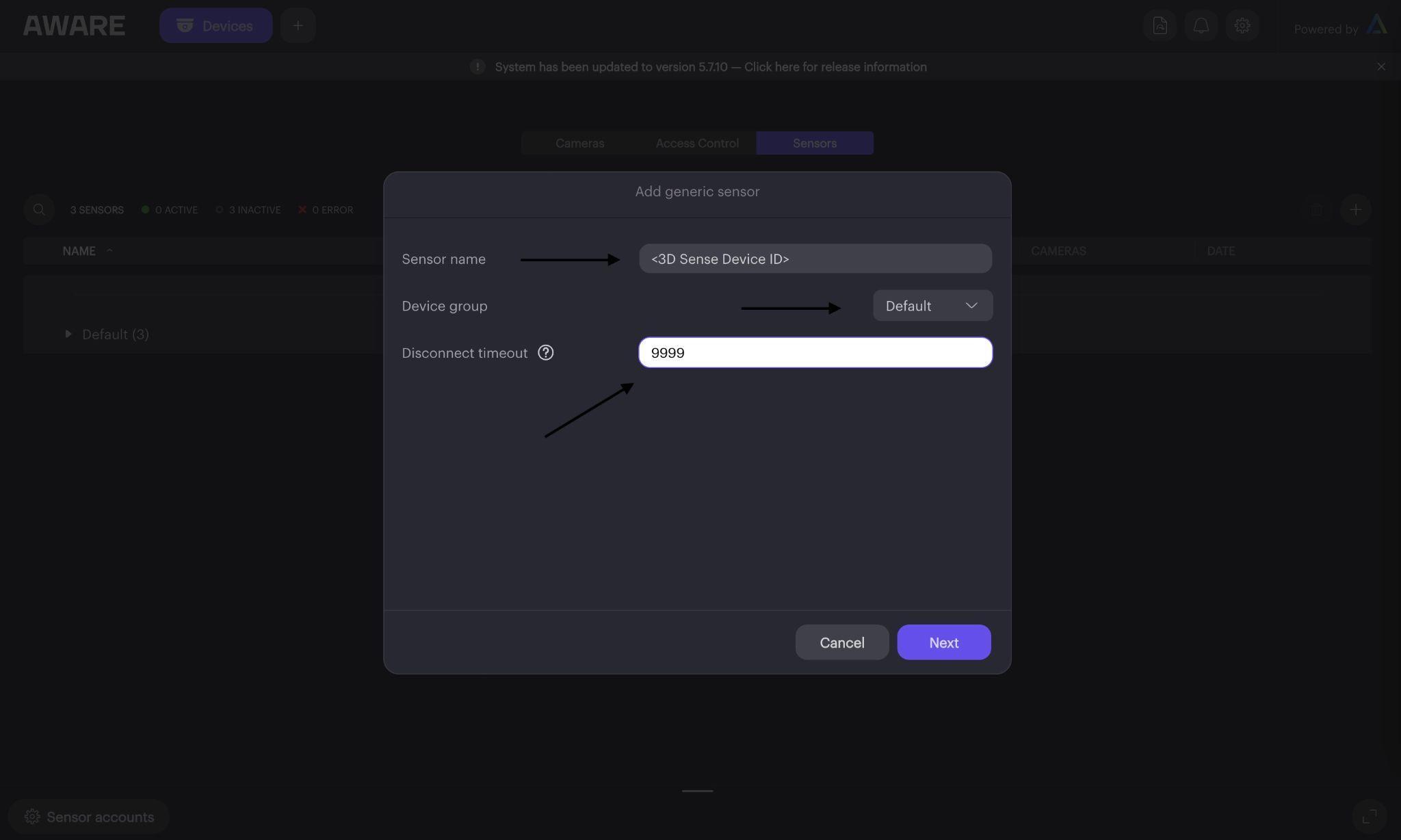
- For each 3D Sense Device, click “+”, click “Generic”, enter a name for your sensor(preferably the Device ID on the side of each device), select “Default” for device group, and set disconnect timeout to 9999
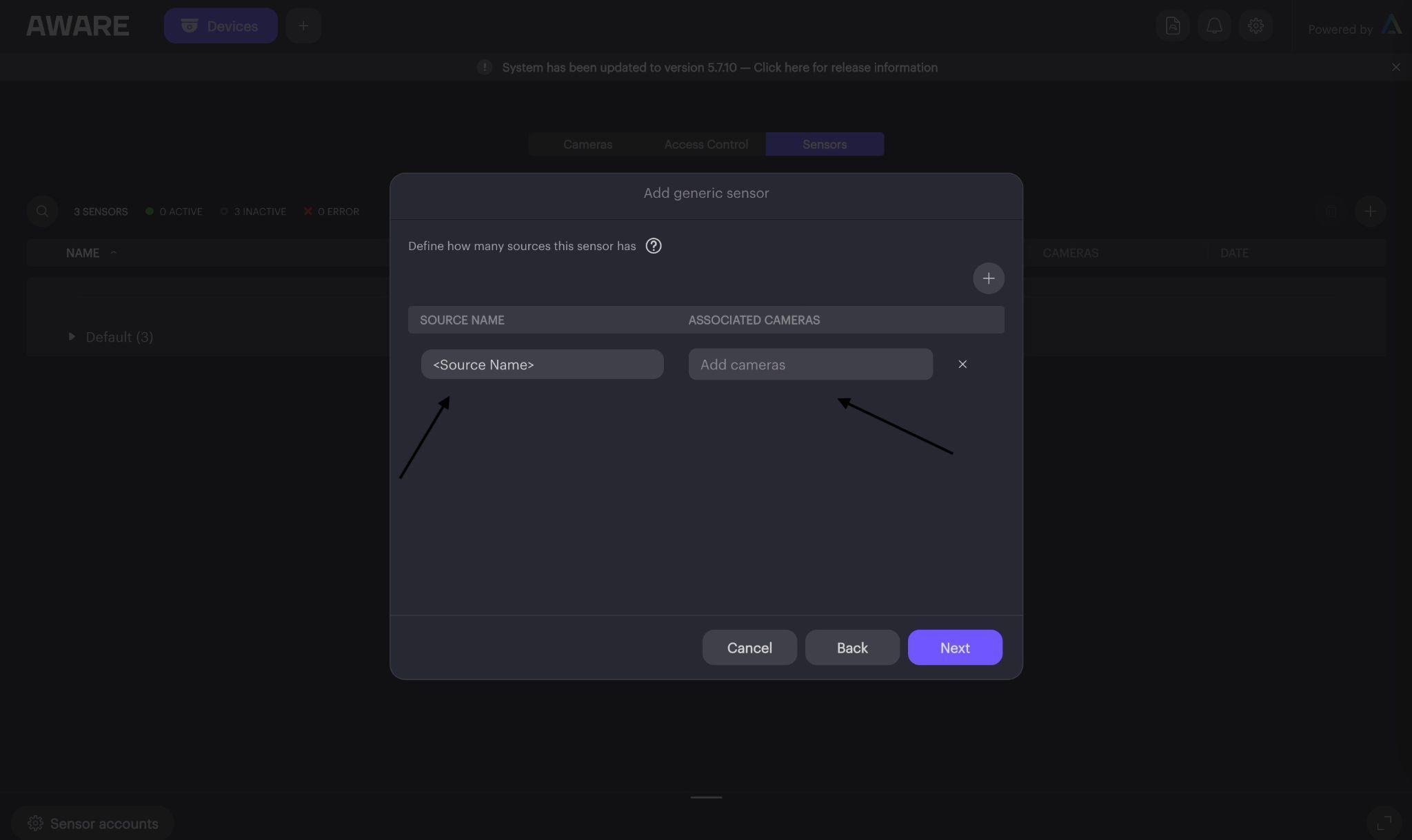
- Click “Next”, add a source name for this sensor, and add all the cameras associated to that 3D Sense location to that source, click “Next”
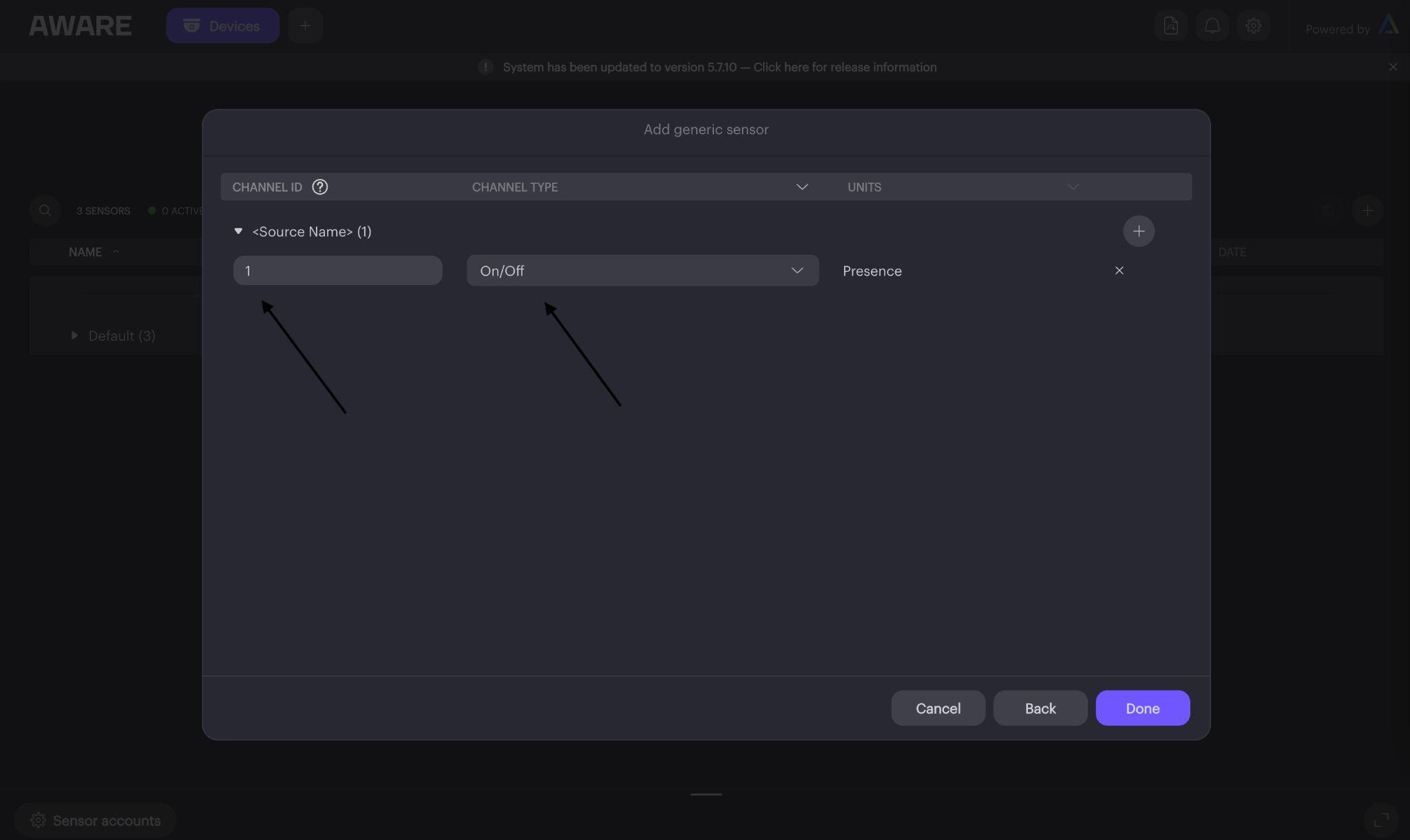
- Set “Channel ID” to 1, set “Channel Type” to “On/Off”, click “Done”:
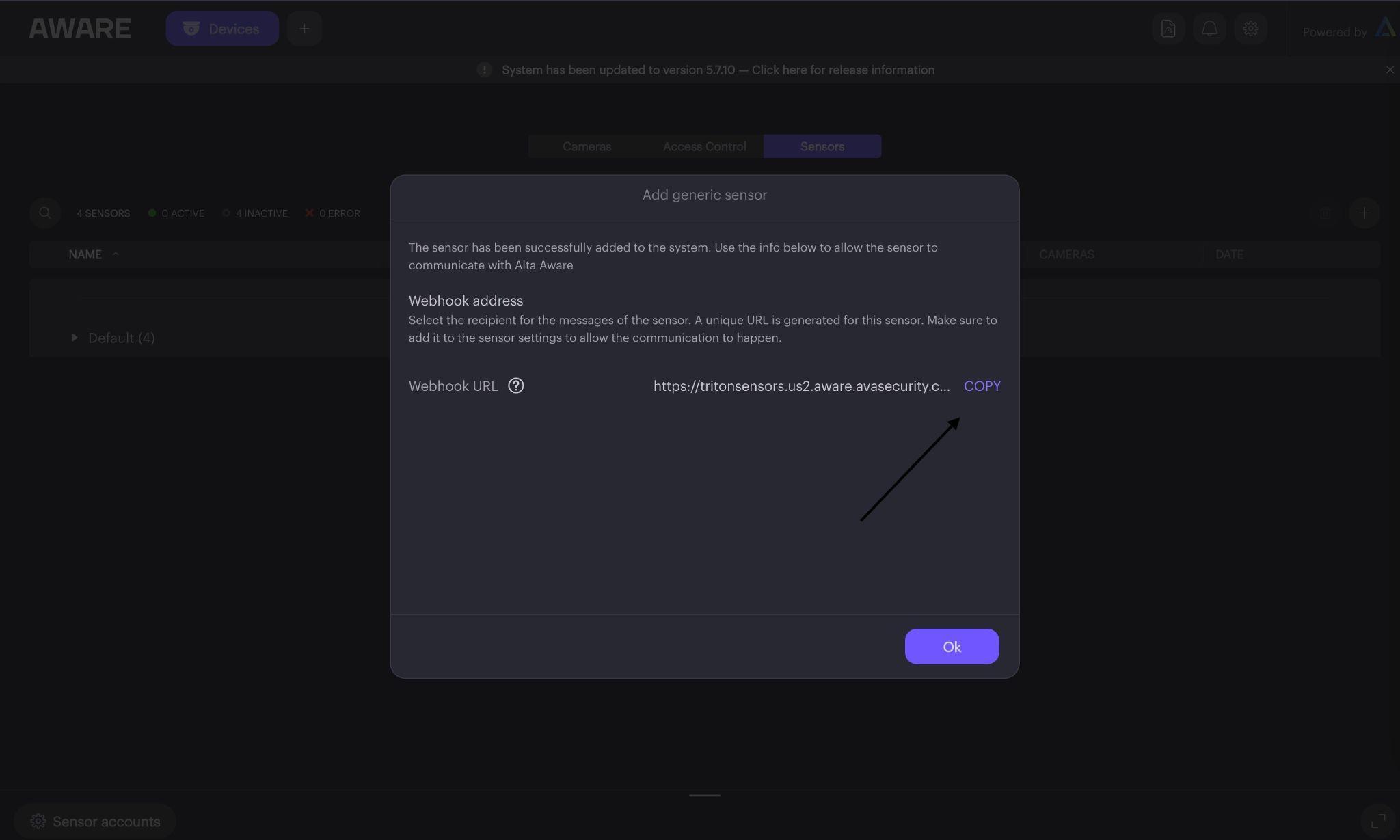
- Next, copy your Webhook URL associated to the device and input the Webhook URL into the Webhook URL field on Triton Sync Dashboard to the corresponding device:
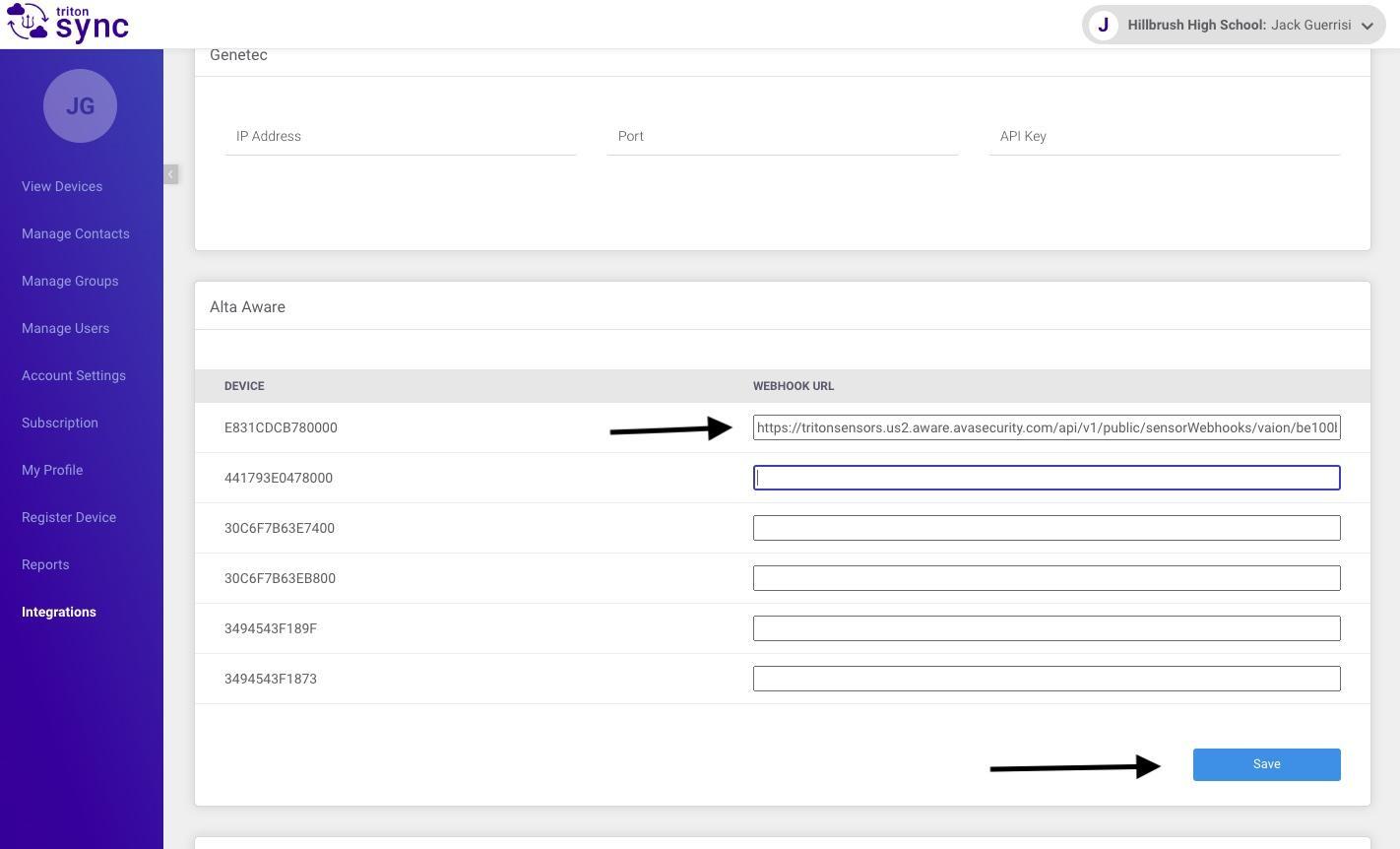
- Repeat steps 3-6 for all 3D Sense Devices, and click “Save”
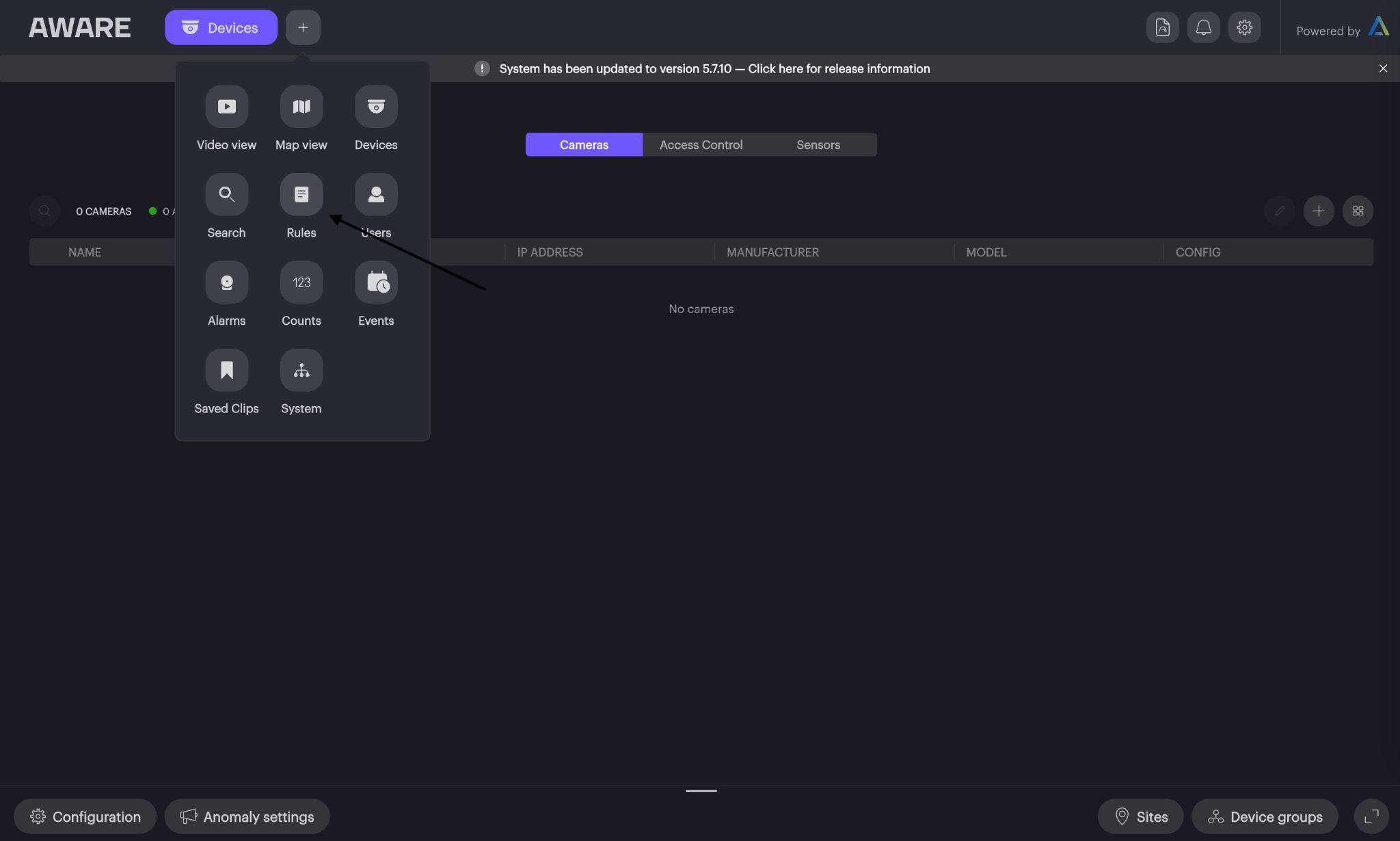
- To set up a rule on Alta Aware, select “+”, then select “Rules”:
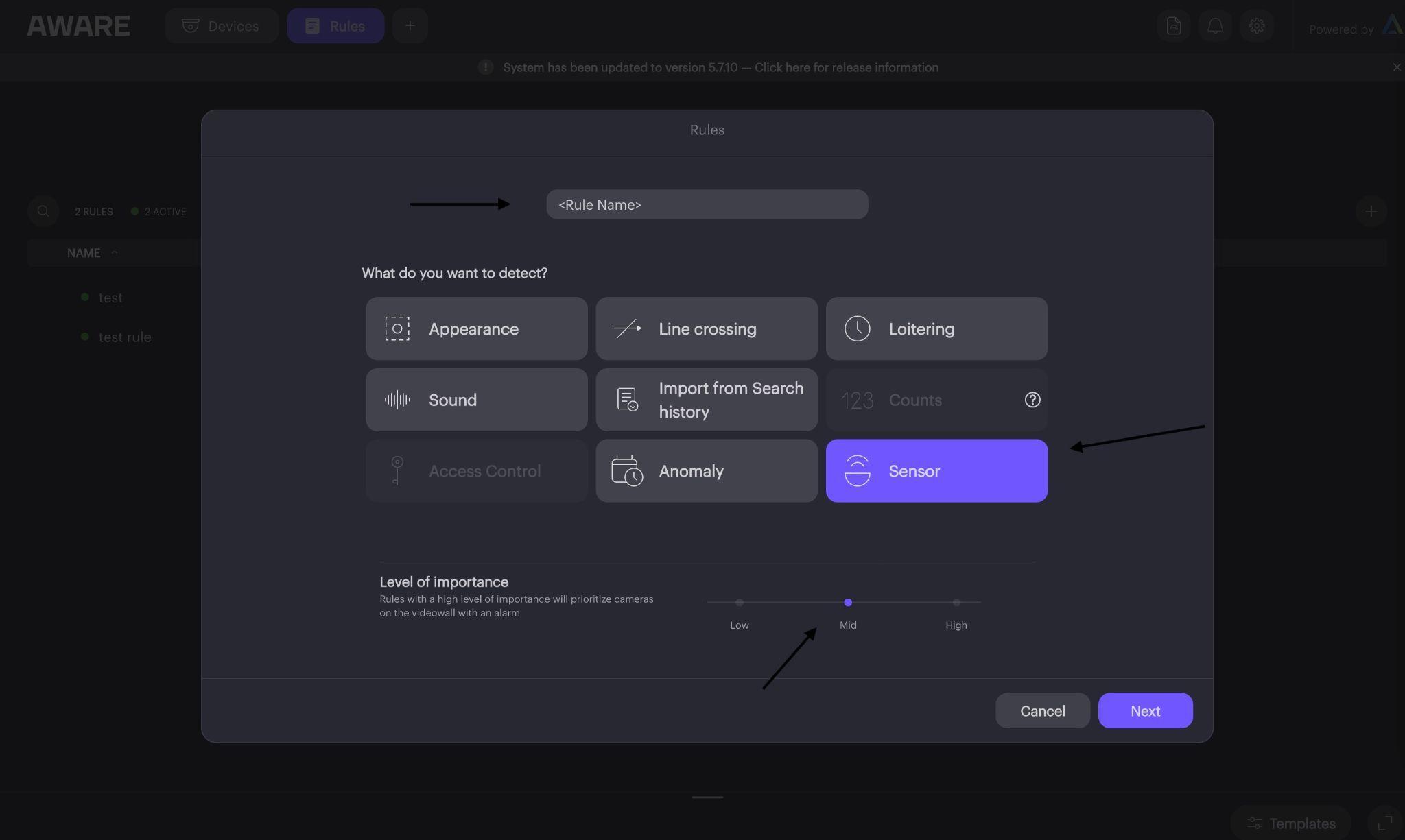
- Click “+” on the right-hand side of the screen to create a new rule, name the rule, select “Sensor”, set “Importance Level”, and click “Next”:
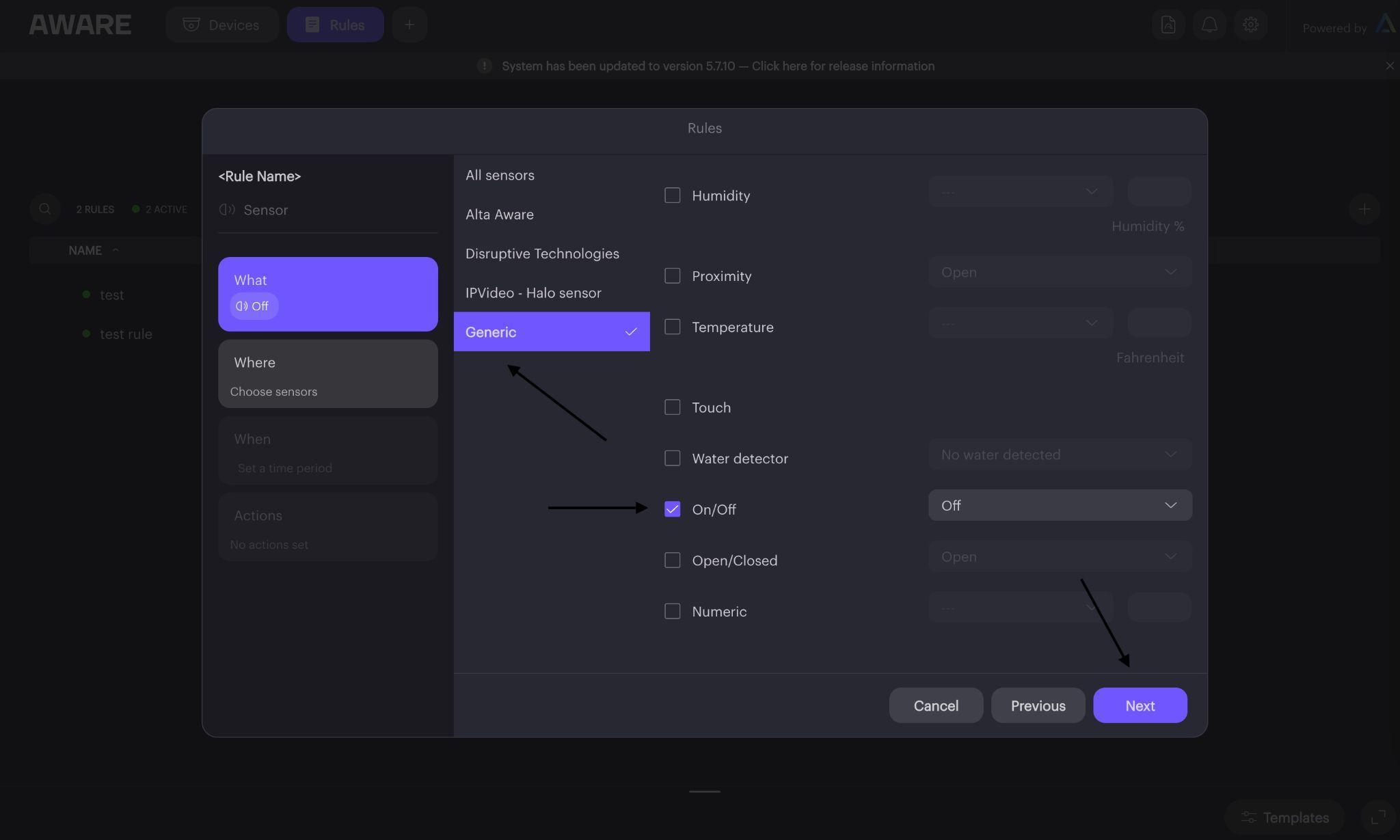
- Click “Generic”, select “On/Off”, click “Next”:
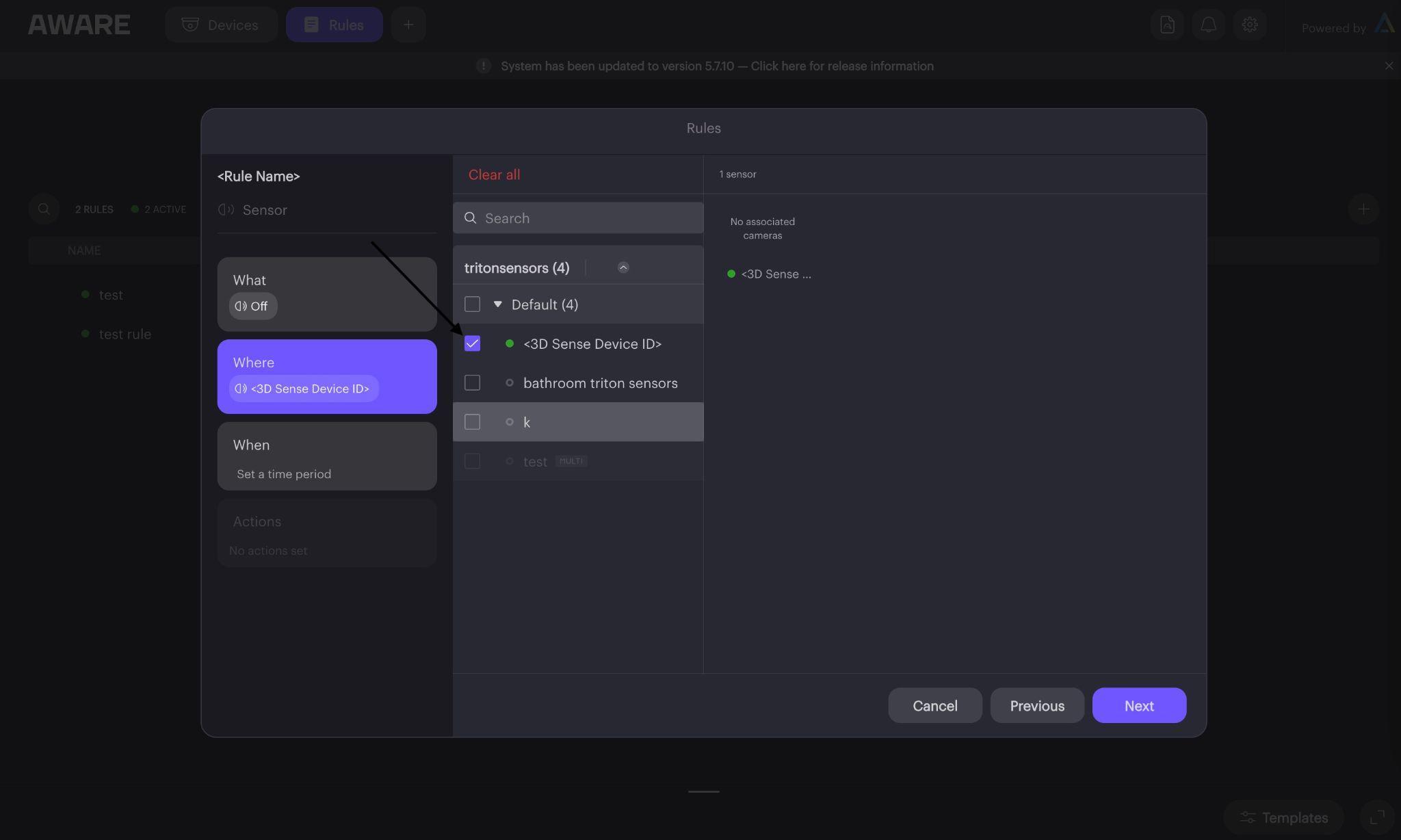
- Select all Triton Sensor Devices, and click “Next”:
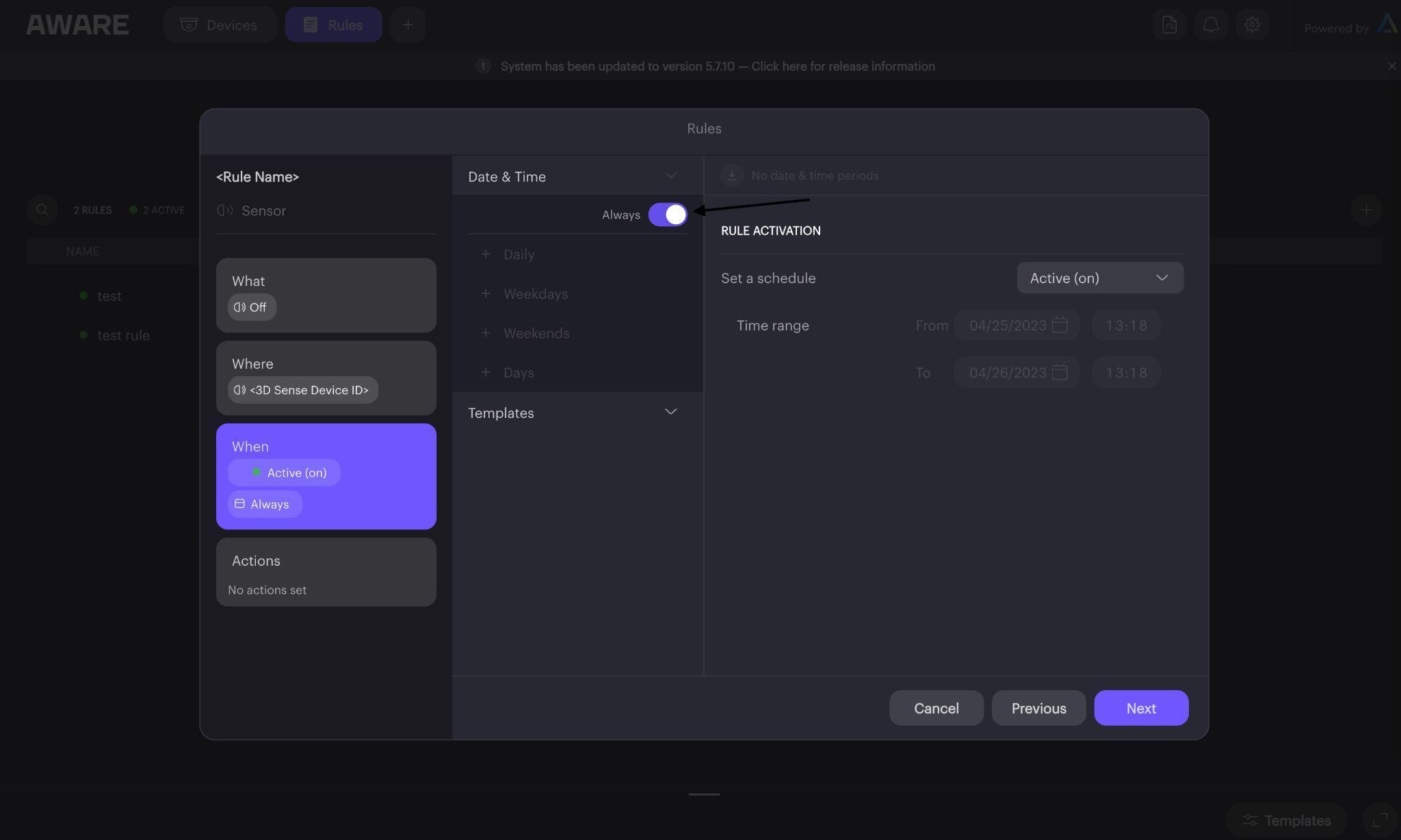
- Select “Always On”(or set a schedule), and click “Next”:
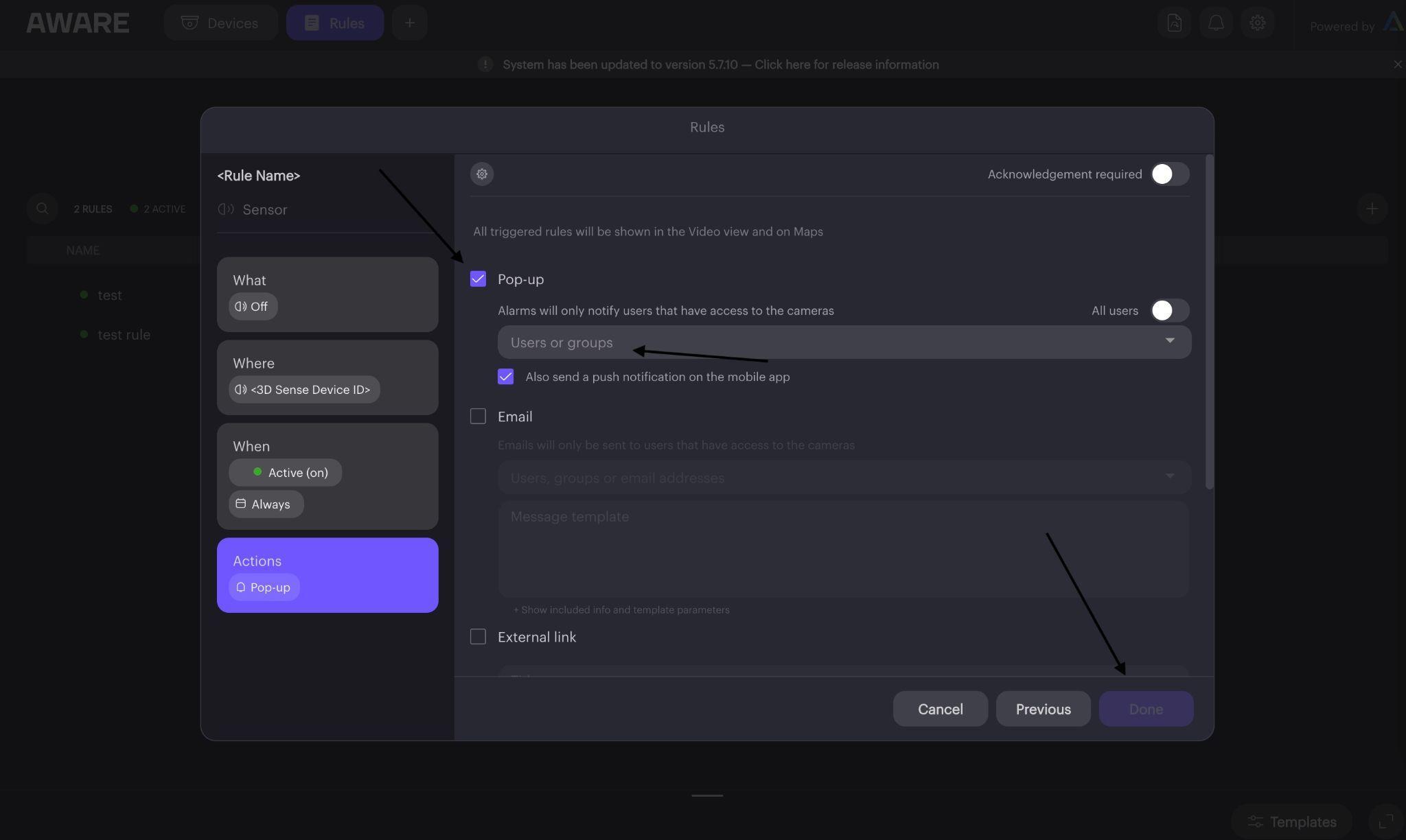
- Select the Pop-up action and set relevant users to be notified, and select any other actions that you would like to be triggered, then select “Done”:
English
